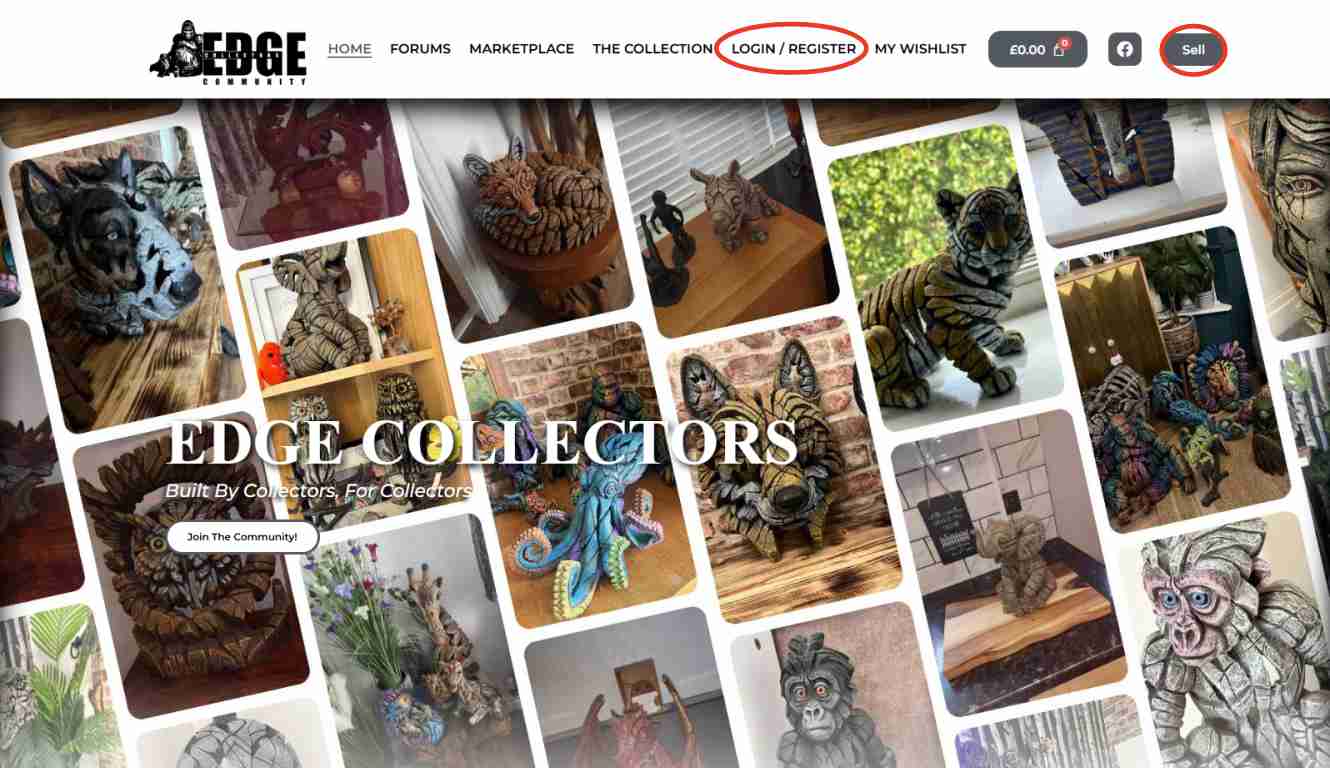
At the top of the website, click either “Register / Login” or the “Sell” button.
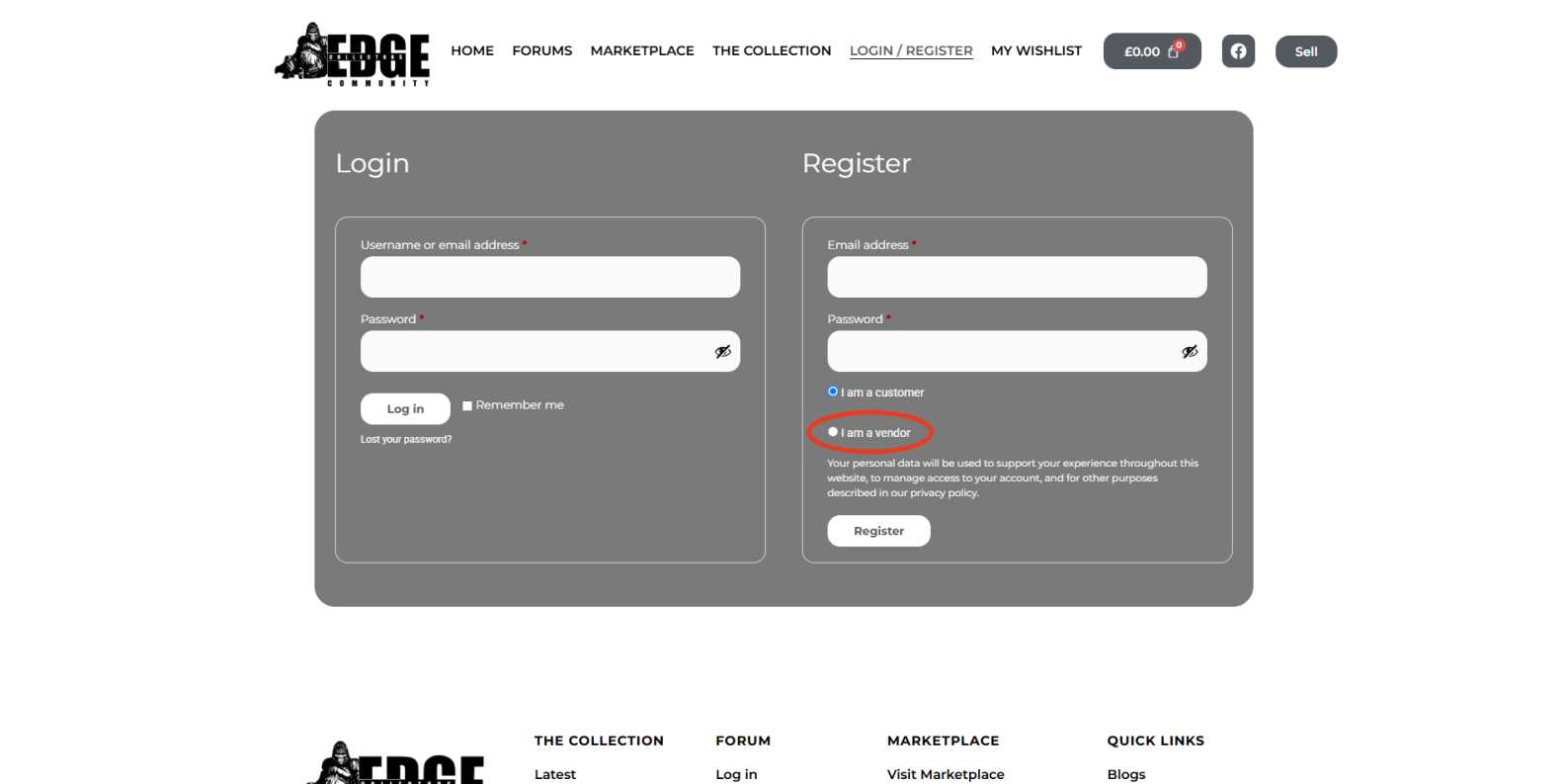
On the registration page, look to the right-hand side and tick the box that says “I am a vendor”.
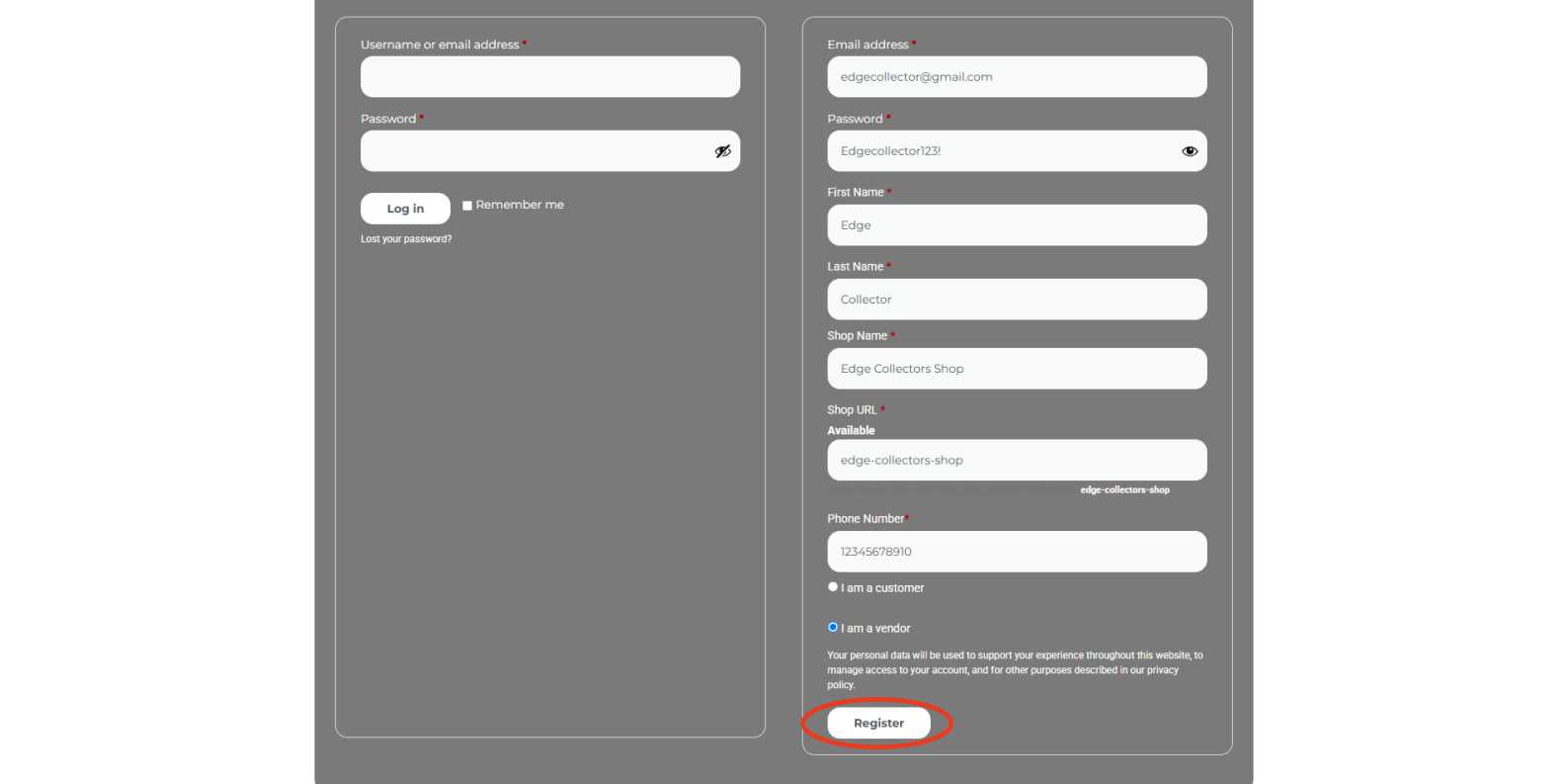
Complete the form with:
Your Name
Email Address
Phone Number
Store Name
Create a secure passwordThen click Register.
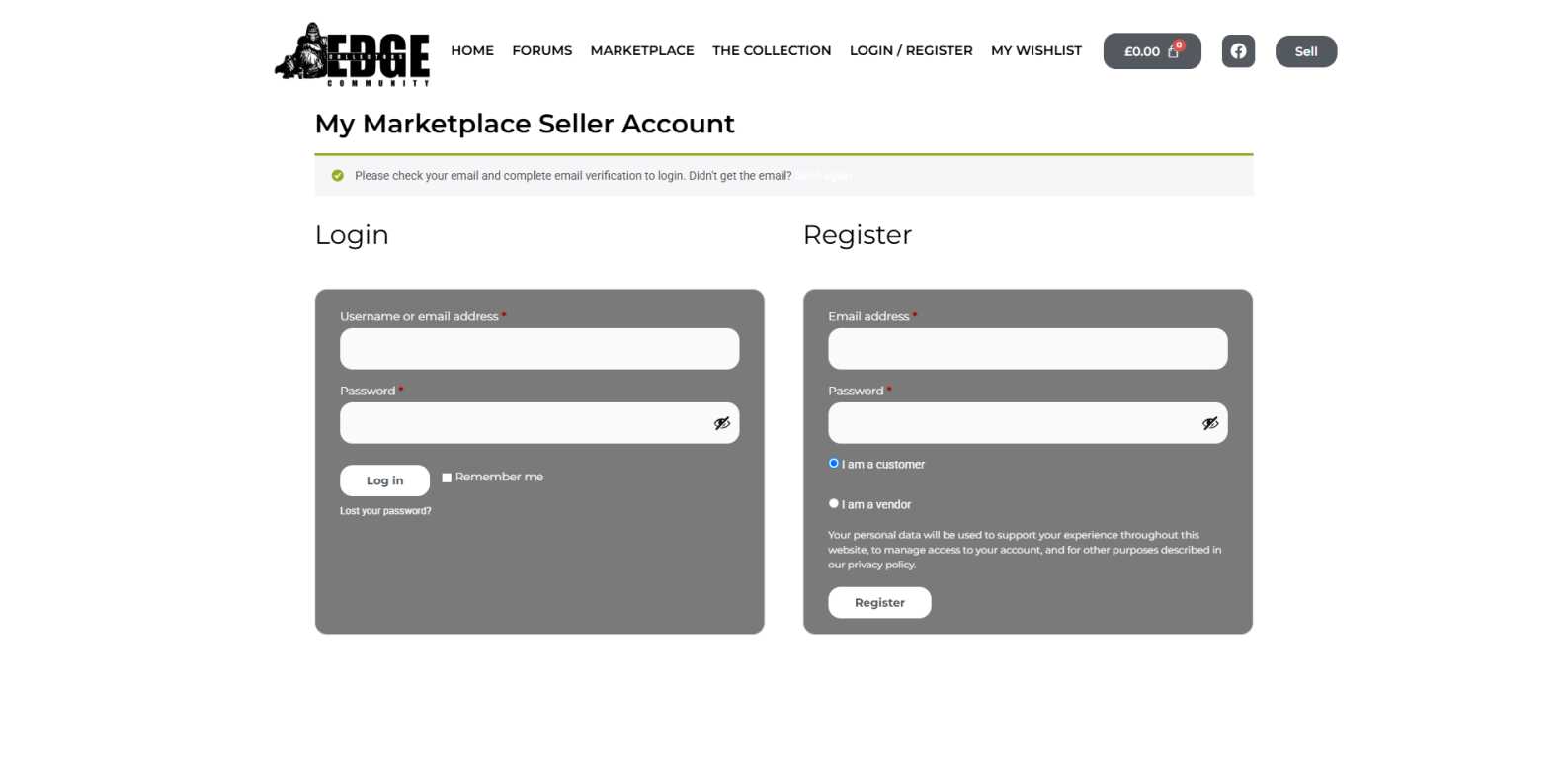
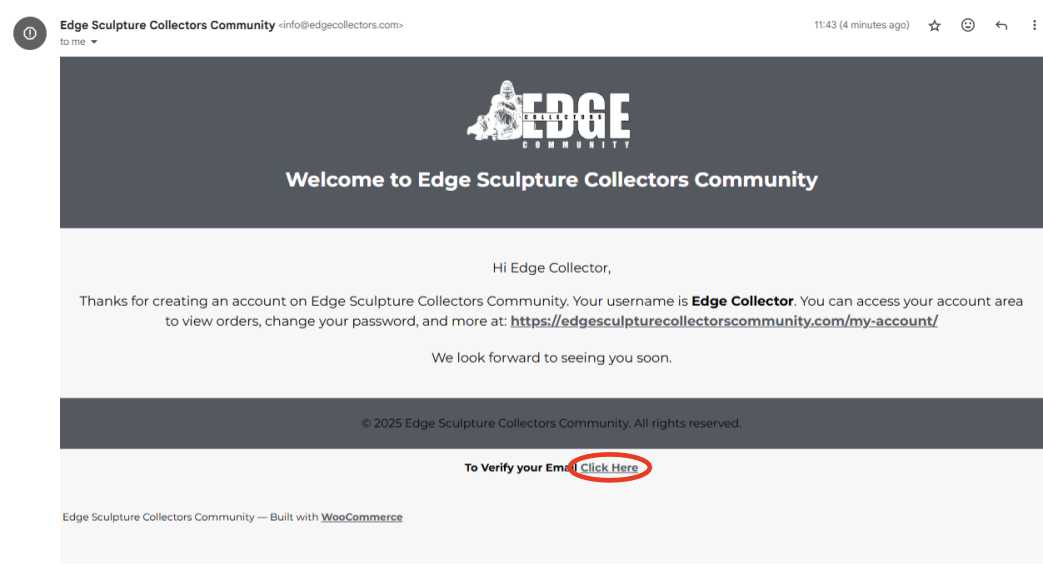
Check your inbox for an email from Edge Sculpture Collectors.
Open it and click the link that says “To Verify your Email Click Here”.
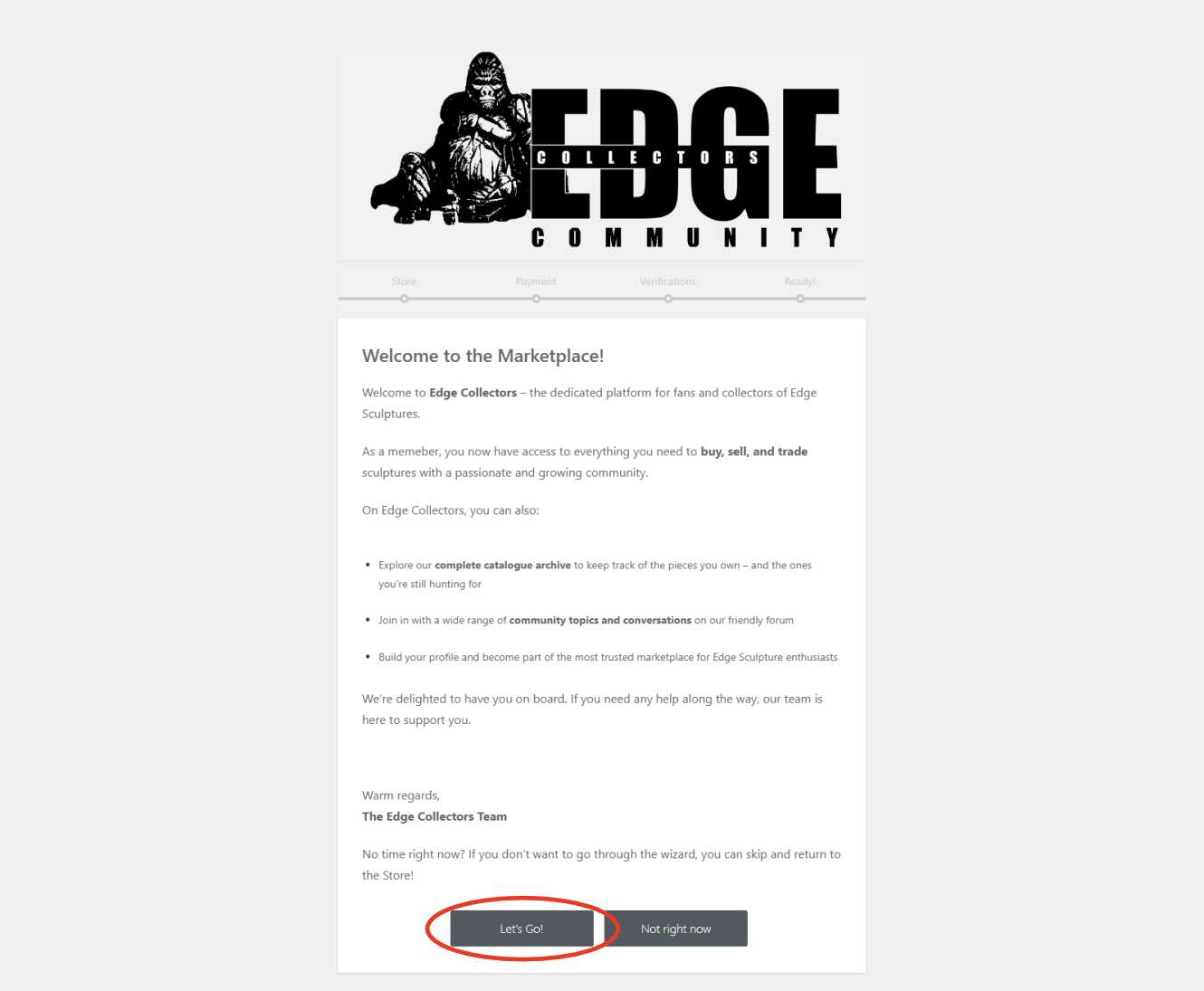
After verifying your email, you’ll be taken to the Vendor Page Setup Wizard.Click “Let’s Go” to begin.
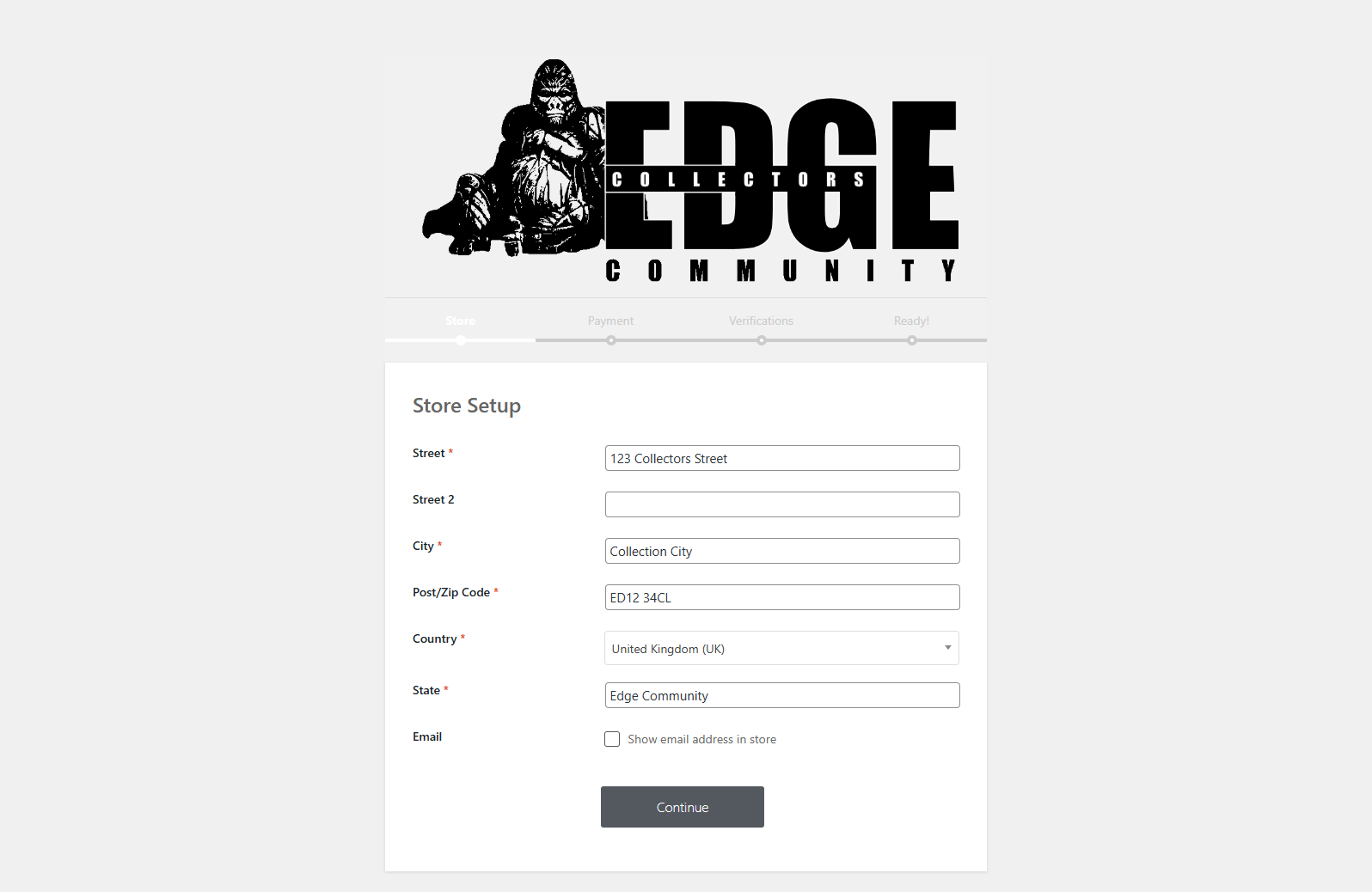
Enter your address
Choose whether you want your email address to be visible on your storefrontClick Continue.
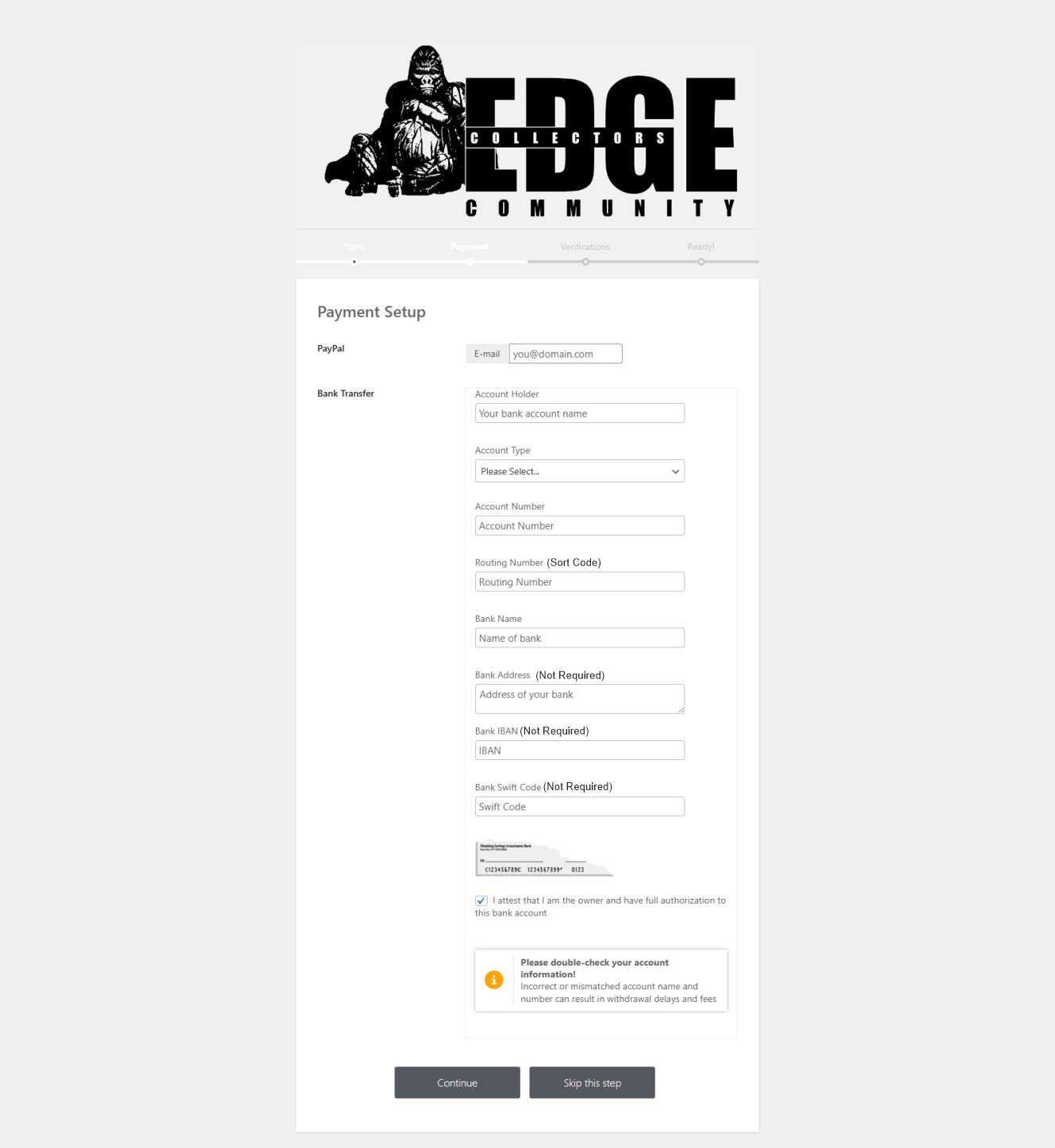
This is where you choose how you’ll receive money from sales.
PayPal: just enter your PayPal email address
Bank Transfer: enter your Account Name, Sort Code, and Account Number
Ignore fields like IBAN, SWIFT, and Bank Address — those are for international accounts only.
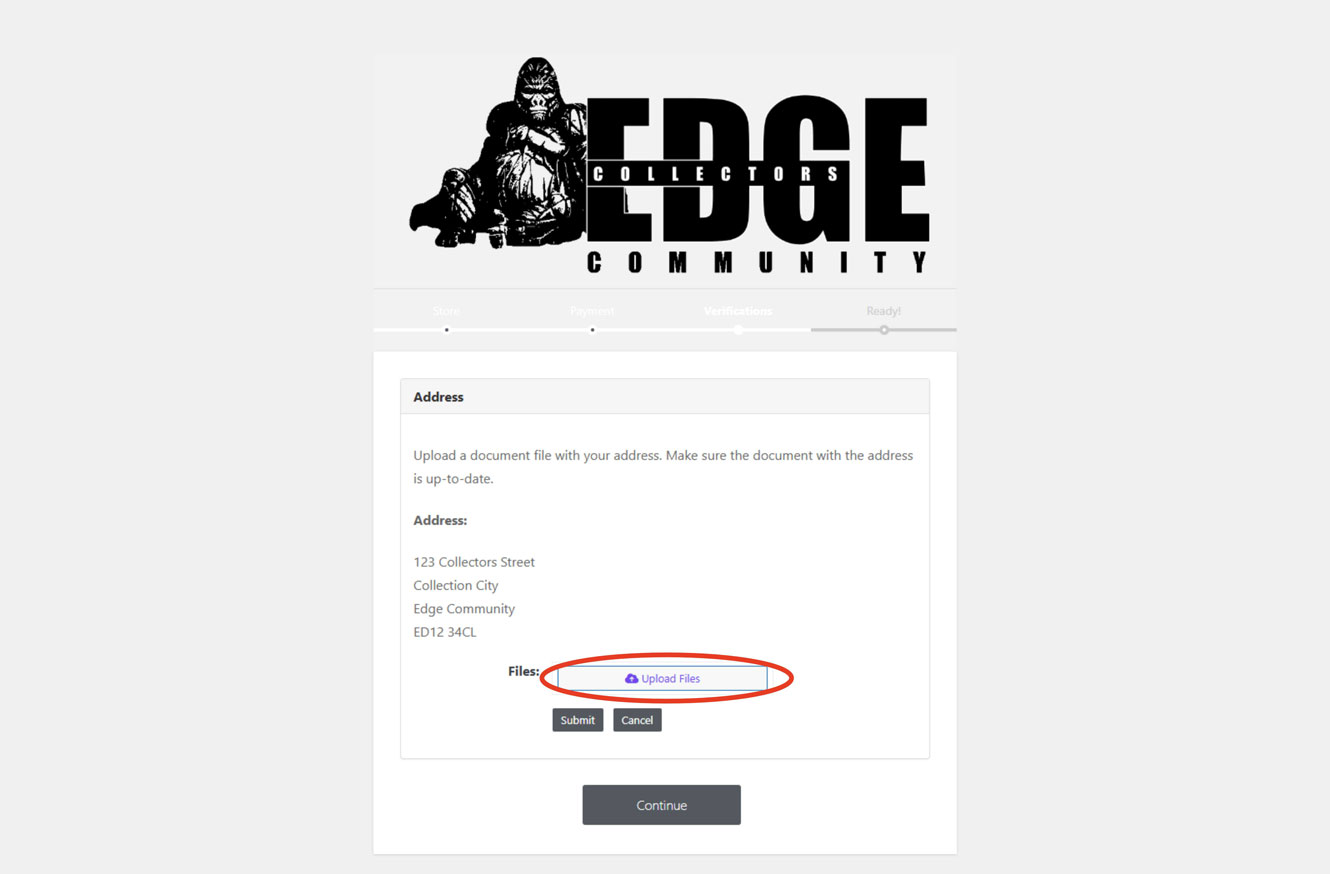
You’ll need to upload a document that shows the same address you just entered.This could be a bank statement, utility bill, or similar.
Click “Upload Files”
Either drag and drop your document, or click “Select Files” to browse your computer
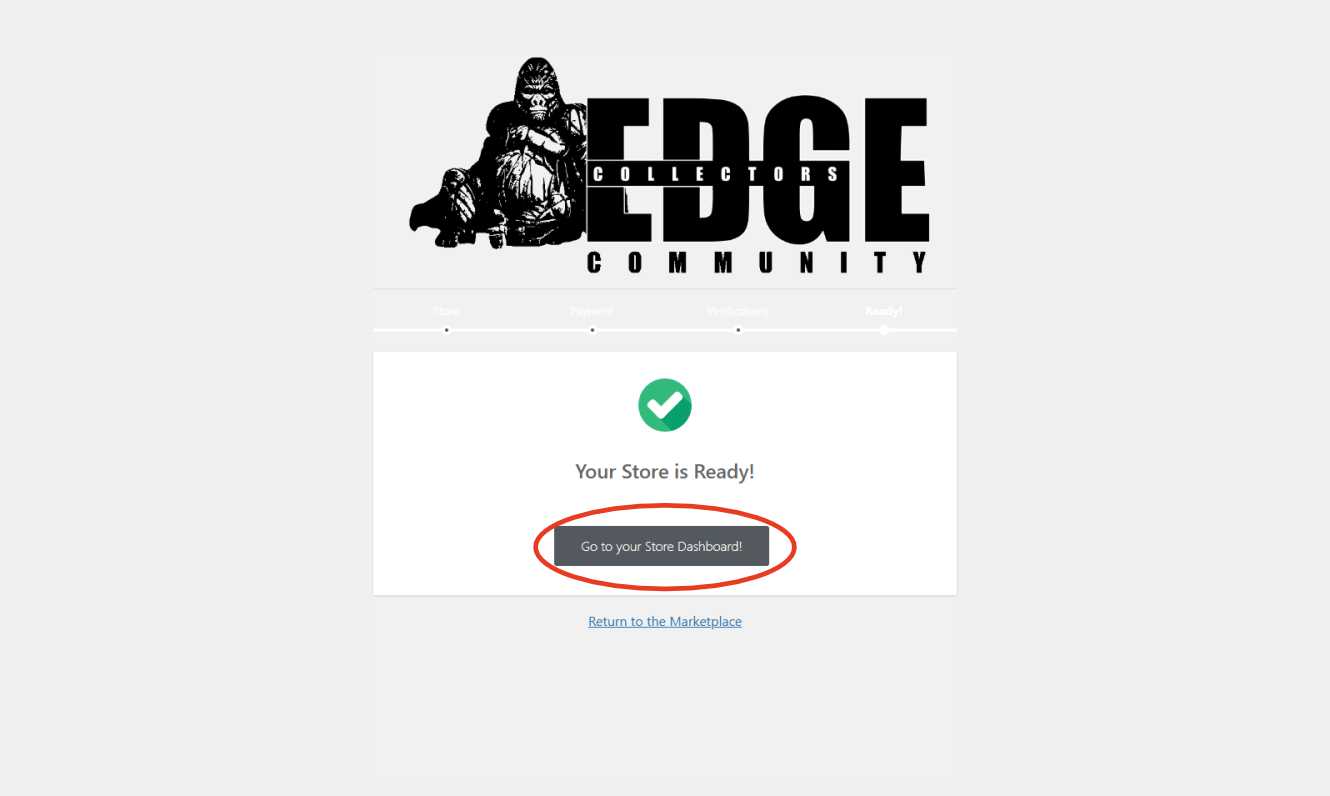
You’ve finished the wizard!Click “Go to Store Dashboard” to continue with the final setup.
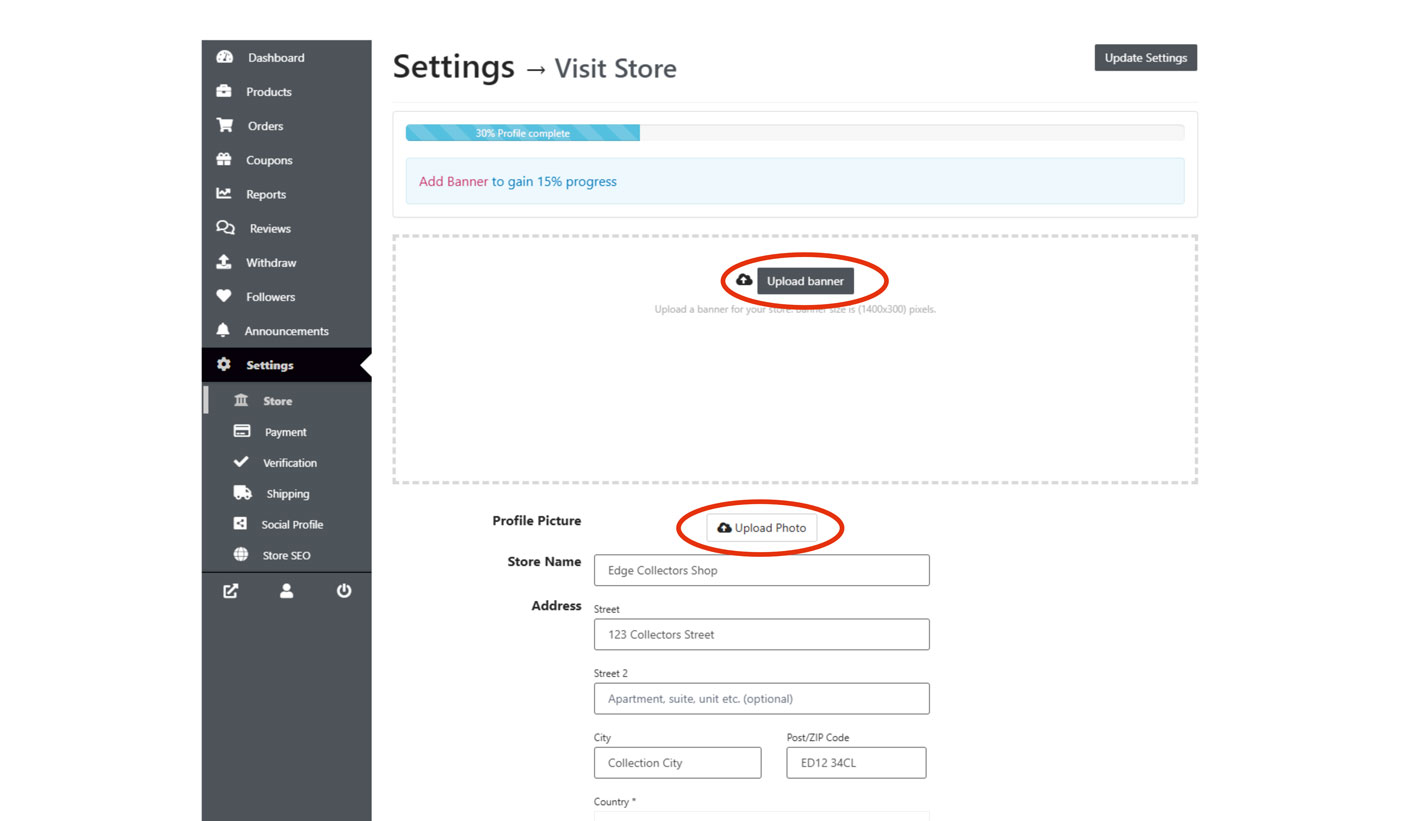
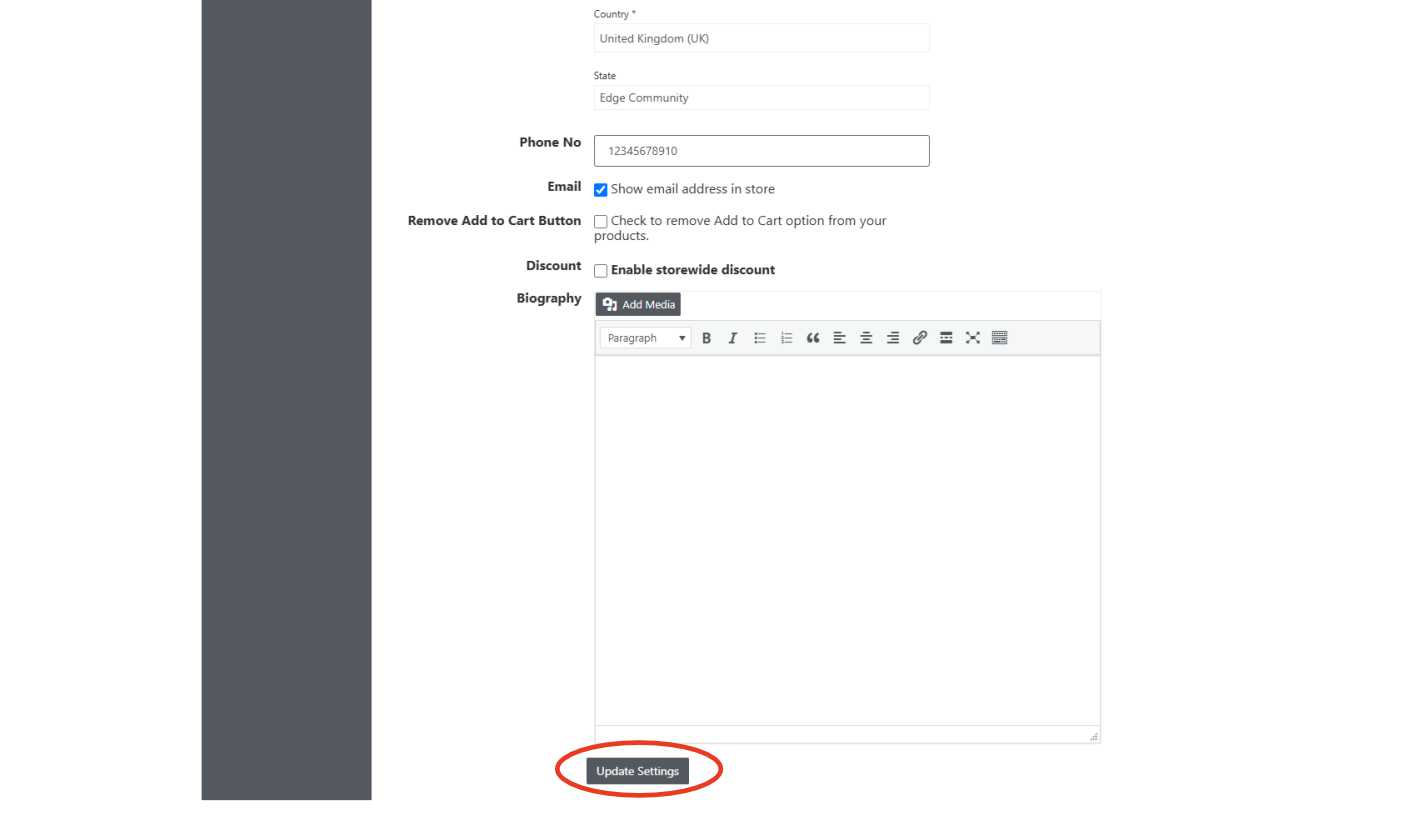
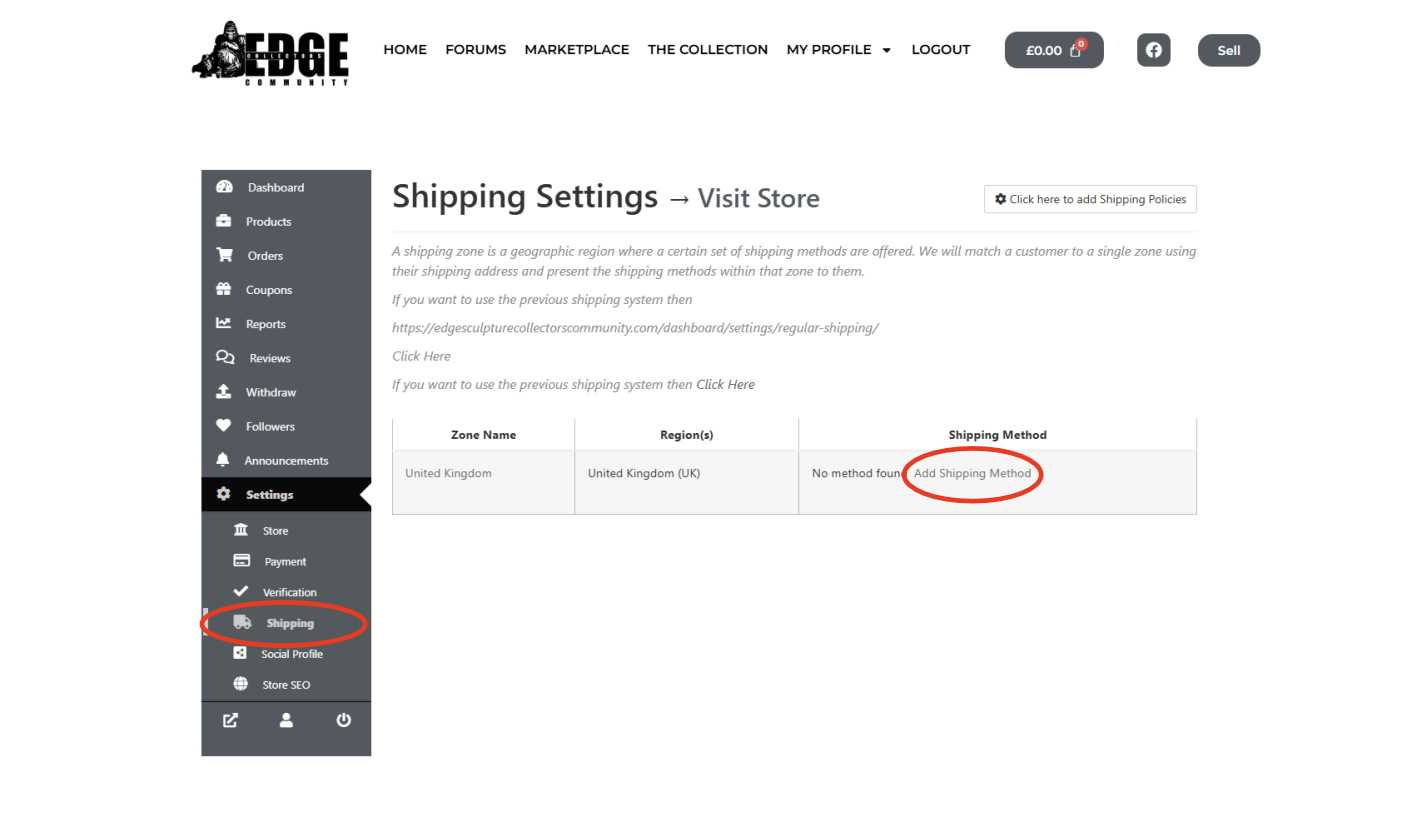
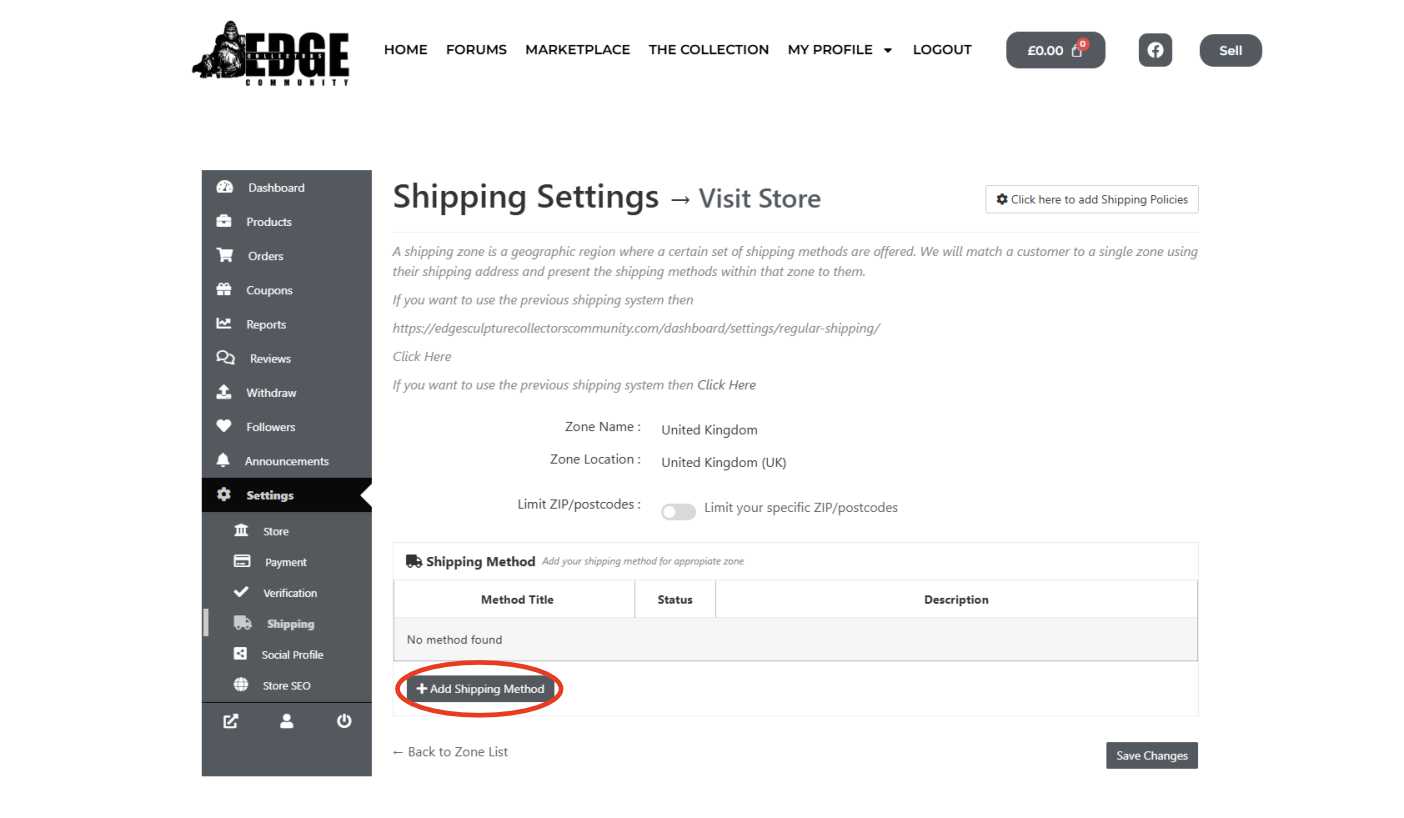
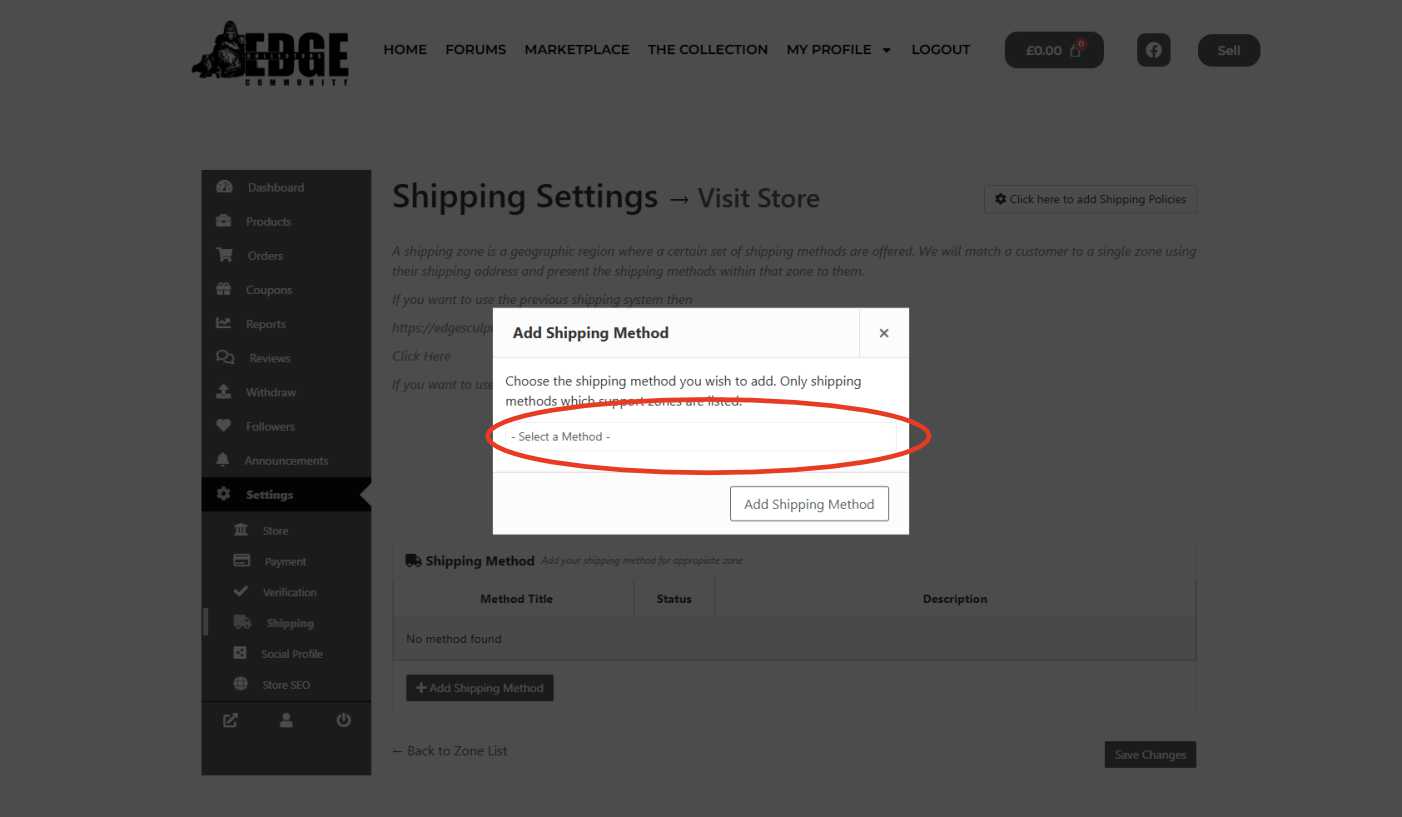
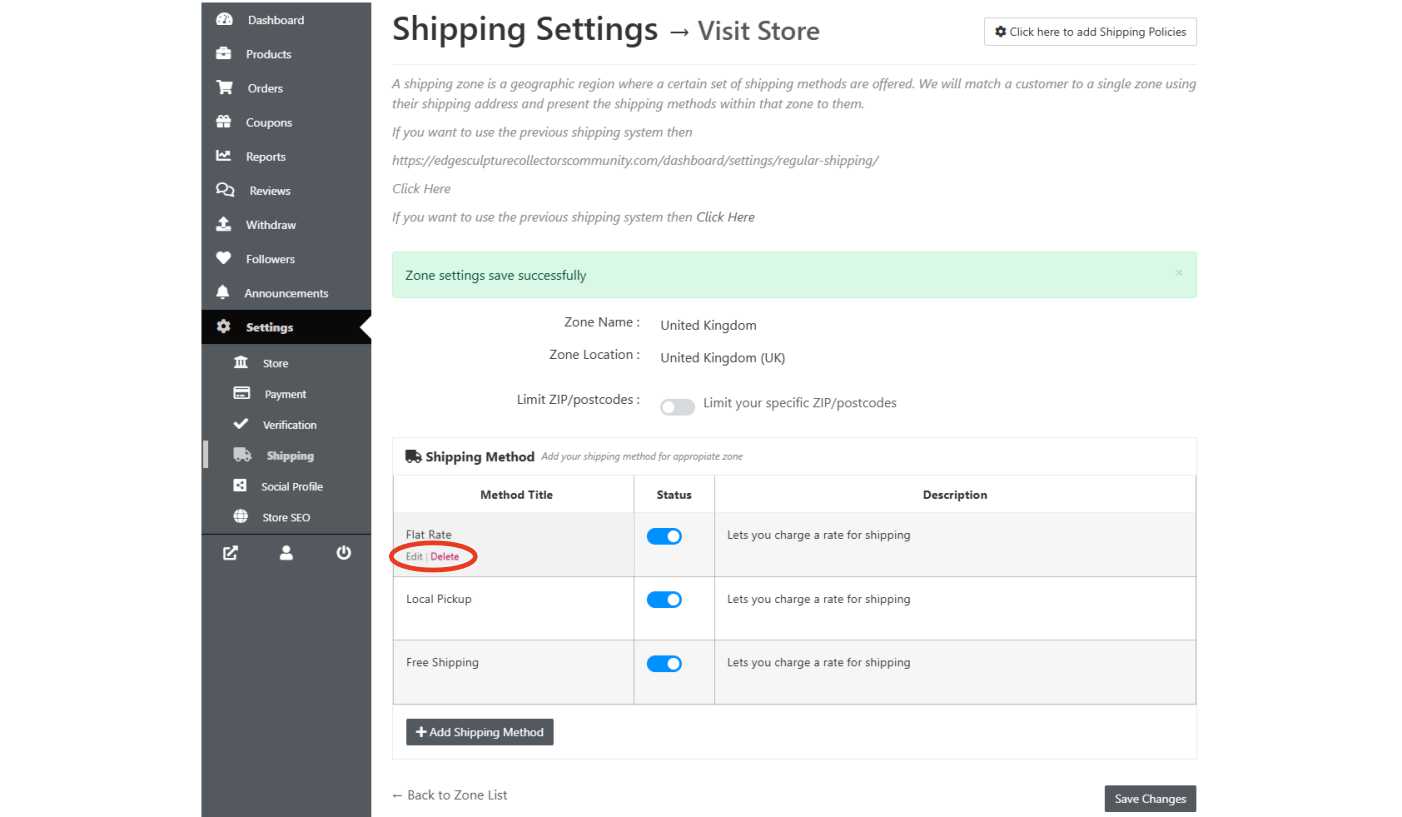
In the left-hand menu, go to Settings → Store
That’s it – your store is live and ready.Head to Products → Add New to list your first sculpture.